
MacBook Screen Flickering or Flashing: Signs of a Software or Hardware Issue
MacBook Screen Flickering or Flashing: Signs of a Software or Hardware Issue
Quick Summary
- Common signs such as MacBook screen flickering during startup, before login, or continuing in Safe Mode can help show whether the issue is more likely to be hardware- or software-related.
- Software causes can include macOS glitches, display settings, refresh rate issues, and app conflicts, while hardware causes may involve the screen panel, internal display connection, graphics system, or logic board.
- If the MacBook screen keeps flashing after troubleshooting, LYK Repair can help identify the real fault and recommend the right repair for your MacBook.
Is your MacBook screen flickering and disrupting your work, study, or daily use? This problem can be caused by both software and hardware issues.
There are a few common signs that can help you work out whether the problem is software-related or caused by hardware, such as when the flickering starts and whether startup display issues are involved.
Find out how to identify whether the problem is software- or hardware-related, how to troubleshoot it, and when professional repair may be the better option.
Common Software Causes of MacBook Screen Flickering or Flashing
In some cases, MacBook screen flickering is caused by software rather than failing hardware.
Software-related flickering is often easier to troubleshoot because it can be linked to system settings, app conflicts, or startup items.
-
macOS Bugs or Corrupt System Settings
A temporary macOS glitch, incomplete update, or corrupted display setting can trigger MacBook screen flickering during normal use.
If the problem appears shortly after a software update or system change, it may be caused by the operating system rather than the screen itself. This can be diagnosed through Safe Mode.
-
Display Settings and Refresh Rate Problems
Certain display settings on Mac can also cause a flashing MacBook screen or inconsistent screen behaviour.
Refresh rate, resolution, brightness settings, and features such as True Tone can sometimes affect how stable the display appears, particularly if the settings were recently changed.
-
App Conflicts and Background Processes
If your MacBook screen keeps flashing only after login or while using certain apps, the cause may be software running in the background.
Login items, browser activity, third-party display tools, or incompatible apps can all interfere with normal display behaviour.
Common Hardware Causes of MacBook Screen Flickering or Flashing
Not all cases of MacBook screen flickering are caused by software.
If the issue continues during startup, appears before login, or stays the same in Safe Mode, a hardware fault becomes more likely.
-
Faulty Screen Panel or Display Assembly
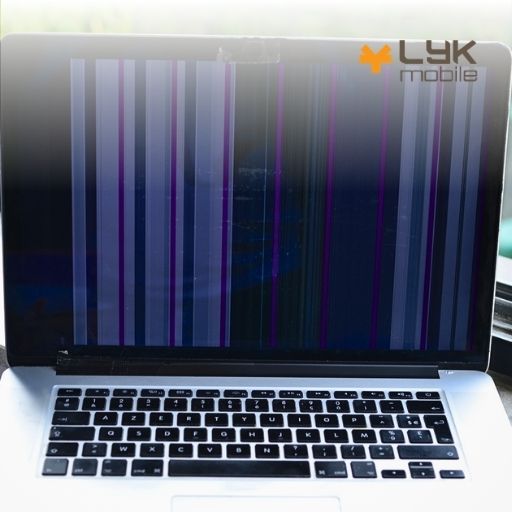
A damaged or failing screen panel can cause MacBook screen flickering, uneven brightness, flashing, dead spots, or horizontal lines across the display.
If the issue only appears on the built-in screen and not on an external monitor, that usually points more strongly to a fault within the display assembly rather than a wider system problem.
-
Internal Display Connection Issues
If the flashing MacBook screen changes when you move the lid or adjust the screen angle, that may suggest an intermittent issue within the display assembly.
In many cases, this points to a problem somewhere in the internal display connection rather than a software fault.
-
Graphics or Logic Board Faults
If MacBook screen flickering appears on both the built-in display and an external monitor, the issue may be deeper than the screen itself.
This can indicate a graphics-related fault or a logic board problem, especially if the flickering also appears during startup or while loading recovery options.
| Symptom | More Likely Software or Hardware? | Possible Cause |
| Flickering only after login | Software | App conflict, startup item, display setting |
| Flickering in Safe Mode too | Hardware | Screen, cable, GPU, logic board |
| Flashing during startup | Hardware | Display assembly or deeper system fault |
| Horizontal lines or bars | Hardware | Screen panel or internal display issue |
| Flickering only in one app | Software | App bug or incompatibility |
| Built-in screen flickers, external monitor is fine | Hardware | Screen panel or display assembly |
| Both built-in and external displays flicker | Hardware | Graphics or logic board fault |
Quick Troubleshooting Tips for a Flickering MacBook Screen Caused by Software Issues
-
Check macOS Updates, Display Settings, and Recent App Changes
Start by checking for pending macOS updates, then review recent changes such as display tools, plug-ins, adapters, browsers, or apps.
If the MacBook screen keeps flashing after one change, reverse it first. Apple recommends installing the latest macOS updates before running deeper diagnostics.
-
Adjust Refresh Rate and Display Settings to Stop MacBook Screen Flashing
Next, open Display Settings and review refresh rate, brightness, resolution, and True Tone.
If your MacBook screen flashing on and off issue gets worse during scrolling or video playback, this step matters.
-
Use Safe Mode or a Clean Login Environment to Identify Software Conflicts
Then compare normal startup with Safe Mode. If MacBook screen flickering disappears, a software conflict is likely.
If the MacBook screen keeps flashing in Safe Mode and normal startup, hardware becomes the more realistic answer. You can use Apple Diagnostics to pinpoint the issue.
How LYK Repair Can Help Diagnose MacBook Screen Flickering Issues
If your MacBook screen still flickers before login, changes with lid movement, comes with horizontal bars, follows a drop, or persists in Safe Mode, you should move to a professional diagnosis.
If you suspect screen damage after troubleshooting, let LYK Repair assess the issue for you. We provide MacBook screen repair services for all types of MacBook models, with stores across Singapore. You can opt for our doorstep repair service, so you can get your screen repaired with more convenience.
Though our services guarantee no data loss, it’s better to be safe than sorry. Find out what to do before sending in your device for repair to prevent any loss in data.
Frequently Asked Questions
Why is my MacBook screen flickering all of a sudden?
Sudden MacBook screen flickering can follow a macOS update, a new app, changed display settings, physical screen damage, internal display connection issues, and graphics and logic board faults.
Why is my MacBook screen flashing on and off?
A MacBook screen flashing on and off issue often suggests a more serious display or graphics fault, especially during startup.
What causes a flashing MacBook screen during startup?
A flashing MacBook screen before login can indicate startup-system trouble, display hardware trouble, or a deeper board issue.
Can macOS updates trigger MacBook screen flickering?
Yes. Some cases of MacBook screen flickering begin after updates if settings become unstable.
How can I tell if MacBook screen flickering is a hardware or software issue?
If the flickering stops in Safe Mode, it is more likely to be software-related, but if it starts before login, continues in Safe Mode, or appears on both the MacBook screen and an external display, hardware is more likely.
Will Safe Mode help diagnose a MacBook screen that keeps flashing?
Yes. If the MacBook screen flickering improves in Safe Mode, it is more likely a software problem.
Diagnosing and Fixing MacBook Screen Flickering the Right Way with LYK Repair
If your MacBook screen keeps flashing after troubleshooting, a professional assessment can help you avoid unnecessary fixes and get to the real cause faster.
LYK Repair is here to help diagnose the issue and recommend the right repair for your MacBook. Reach out to us to book an appointment.
A large part of what makes the iPad Mini so popular is its tiny frame combined with insane processing power. Apple knew their target demographic well when tweaking the specs for this recent release, and it really shows. Catered towards people working on the go, and creatives who spend a lot of time drawing and sketching for work, this 6th generation iPad Mini checks all the boxes for a powerful and portable tablet suited for work and play.
Apart from the changes to case material, the new design language of the iPad Mini 6 features a larger edge-to-edge screen, along with narrow borders and minimum bezel space. Although we’ve seen bezel-less devices from Apple for the better half of a decade, this is the first time the iPad Mini has gotten such an upgrade. In addition to looking much sleeker, this change is felt even more coupled with the new 8.3-inch Liquid Retina display with True Tone, P3 wide colour, and ultra-low reflectivity.
The end result is a gorgeous dynamic screen that makes the iPad Mini 6 a practical choice indoors and outdoors. Not to mention the support of Apple Pencil 2, which feels amazing on the low latency screen. All these facets add up to make a difference larger than the sum of each individual part, resulting in the new iPad Mini feeling like the perfect device for anyone wanting a portable and adaptable workhorse tablet.

Apart from the changes to case material, the new design language of the iPad Mini 6 features a larger edge-to-edge screen, along with narrow borders and minimum bezel space. Although we’ve seen bezel-less devices from Apple for the better half of a decade, this is the first time the iPad Mini has gotten such an upgrade. In addition to looking much sleeker, this change is felt even more coupled with the new 8.3-inch Liquid Retina display with True Tone, P3 wide colour, and ultra-low reflectivity.
The end result is a gorgeous dynamic screen that makes the iPad Mini 6 a practical choice indoors and outdoors. Not to mention the support of Apple Pencil 2, which feels amazing on the low latency screen. All these facets add up to make a difference larger than the sum of each individual part, resulting in the new iPad Mini feeling like the perfect device for anyone wanting a portable and adaptable workhorse tablet.

It wouldn’t be an Apple upgrade if they didn’t improve the camera capabilities on the device. If anything, that’s the least we expect from the tech giant’s annual keynote events. This time, the iPad Mini has received blessings in both the front and back cameras on the device. Boasting a 12MP camera on both the front and back of the 6th-Gen iPad Mini, this is a massive boon compared to the relatively sub-par 7 and 8-megapixel cameras on the respective front and back of the 5th-Gen iPad Mini. The newer Mini also has the ability to record in 4k and capture higher-quality images, courtesy of the new Smart HDR 3 function in the A15 Bionic chip.
Knowing that video calls are also more popular now than even in the time of COVID-19, Apple’s implementation of CentreStage for a more natural video call experience also feels like a natural feature to have as well.
A ton of well-deserved updates to the iPad Mini makes it feel right at home alongside Apple’s latest generation of tablets. If you’re still wondering if you should still get the new iPad, the make or break factor here really is the size and portability of the iPad Mini 6.
Historically, the Mini was always viewed as the cheaper and lower-spec cousin of the flagship iPad. Not this time – the iPad Mini 6 proves a worthy contender for the individual who’s constantly on the move, looking for an all in one device that fits comfortably in the palm of their hand.